
IN999 Game Login: the fastest path back to an existing account
IN999 login problems can look identical at first even when the cause is different. The useful step is to separate route, credential, verification, app and account-state problems before changing anything. Some users know their password but cannot open the route. Others changed phones, reinstalled the app, forgot the password, entered the wrong number format or are using an old saved link.
Start with the registered mobile number and password. If those credentials were working before, do not create a second account just because a shortcut stopped loading. First isolate whether the problem is the route, the app, the network or the password.
How to complete IN999 Game login correctly
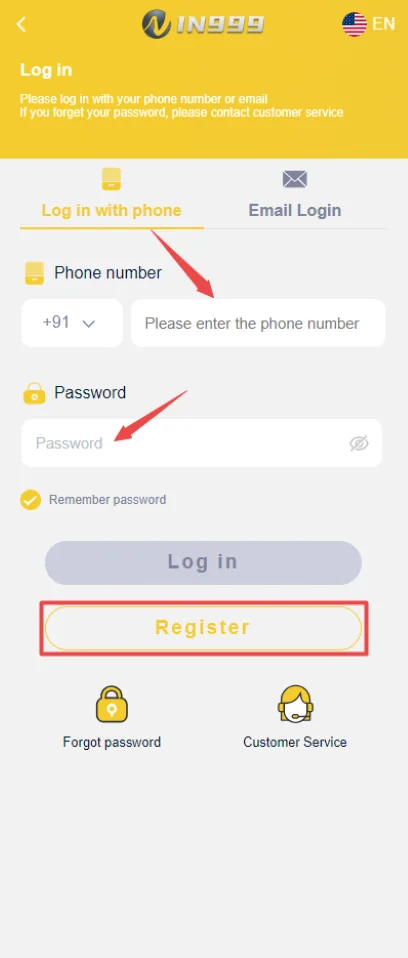
Open the login screen and select mobile login unless your account was created with another supported method. Enter the same phone number used at registration. Avoid extra spaces or typing the country code twice.
Enter the password carefully and use the eye icon only when you are in a private place. If the form remains inactive, confirm that every required field is complete. After a successful sign-in, the app should return you to the main lobby or account home rather than asking you to register again.
- Open the current IN999 access route.
- Choose mobile login and enter the registered phone number.
- Enter the existing password exactly.
- Sign in and confirm your account/wallet identity before any transaction.
IN999 Game Login after IN999 Game App download or reinstall
A fresh install changes the app files on the phone, not the account itself. Use the existing credentials after reinstalling. If the old version stored a login session, you may simply be asked to sign in again.
If the new install rejects the password, use the reset flow instead of registering again. Duplicate registration can create confusion around wallet history, invite relationships and bank details.
Forgot password: reset instead of guessing
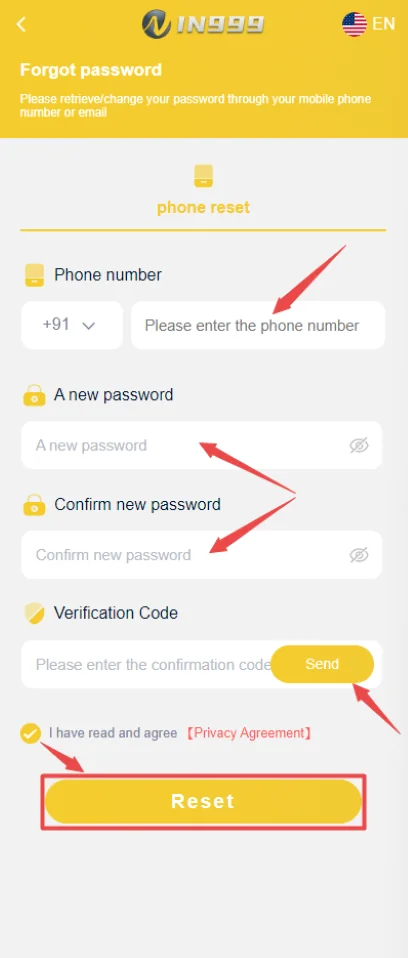
The forgot-password screen normally asks for the registered phone number, a new password, confirmation of that new password and a verification code. Request the code only on a phone number you control.
Do not cycle through many guesses if the account starts rejecting attempts. A clean password reset is easier to verify later and reduces the chance of locking yourself out.
IN999 Game Login problem checklist
If login fails, note the exact behavior: wrong-password message, endless loading, blank screen, redirect loop, disabled button or verification-code issue. Each symptom points to a different fix.
- Wrong password: reset the password.
- Blank/slow screen: change network and reload once.
- Old shortcut: open the current access route instead.
- App crash: clear temporary cache or reinstall from a trusted source.
- Verification code missing: confirm mobile signal and number format before requesting again.
IN999 Game Login security
Treat login credentials as the key to the wallet and transaction history. Use a password that is not shared with email, social media or payment apps. Never send a password screenshot to a stranger offering to recover the account.
If you suspect someone else knows the password, change it immediately, review linked bank details and check recent transaction records before continuing to play or add funds.
Six login problems that need different fixes
A user typing IN999 Game Login may be trying to do one of several things: open the login screen, find a working route, sign in after installing the app, recover a forgotten password, fix a login error, or return to an older account. Treating all of those as the same task leads to bad troubleshooting.
If the login screen itself does not load, work on the route/network first. If it loads but rejects the password, work on credentials. If the account opens but the lobby does not load, work on app/network state. If the wallet or account identity is wrong, stop before making a transaction and verify the account details.
IN999 Game Login: mobile number format and saved-login mistakes
Use the exact number that was registered. If the form already shows the +91 country prefix, do not type +91 a second time inside the number field. Avoid copy/paste when it adds spaces. A number that looks correct visually can still include a hidden space at the beginning or end.
Saved autofill can also insert an old password. If a password changed recently, delete the autofilled value and type the new password manually once. If the account is used on more than one device, make sure you are not mixing credentials from a second account.
IN999 Game Login after changing phones
A device change should not require a new registration if you still control the registered number and know the password. Install the current app, sign in with the existing credentials and then review security/account details. If the old phone was lost, change the password after successful login and review linked bank details and recent transactions.
If the registered SIM is no longer available, do not send identity or bank documents to a random contact from a chat group. Use the platform’s supported recovery channel and ask what ownership checks are required.
Session, cache and repeated redirect problems
A stale session can produce a blank screen, repeated redirect or a screen that looks logged out even after correct credentials. First reload once on a stable connection. If the problem is app-specific, close the app fully and reopen it. Clear temporary cache only if you understand the difference between cache and full app data.
Do not repeatedly install different APK files from different sources to fix one login problem. That introduces a new source-risk while the original issue may simply be an expired route or old session.
What to record before contacting customer service
Write down the registered number in masked form, the approximate time the error occurred, the device type, app version if visible and the exact message shown. A screenshot of the error can help, but redact wallet balances or unrelated account details if they are not needed.
Never include the password, OTP or payment PIN in a support message. Those secrets are not required to identify a loading error or failed login.
IN999 Game Login link phrases: old route vs current account
Users often save a login address in bookmarks or receive it in a message. The account and the route are not the same thing. An old route can stop resolving while the account remains valid. When that happens, use a current access route and the existing credentials.
Do not interpret a domain change as proof that you need to create a new account. The correct check is whether the current login screen recognizes the registered mobile number and password.
IN999 Game Login: email login, mobile login and account method consistency
The supplied screen highlights mobile login and also shows an email-login option. Use the method originally associated with the account. Switching methods can look like a wrong-account problem if the credentials belong to a different account identity.
If you normally use mobile login, keep using the registered number unless the platform itself instructs you to migrate the account method.
After a successful recovery
Once the new password works, sign out of any device you no longer control if the platform offers that option. Review recent transactions and linked bank details. If the old password was reused elsewhere, change it on those services too.
Save the new password in a secure password manager or another private method. Avoid sending it to yourself in public chat or storing it inside the same screenshot folder as account details.
Looking for the “IN999 Game Login current website”: what to verify instead of trusting a label
A site can write words such as login, register or current without proving who controls it. Before entering credentials, check the final destination, whether the route behaves like the account route you recognize and whether the app/account identity matches after sign-in. Do not trust a label by itself.
If the destination changes from a saved address, that does not automatically make it unsafe, but it does mean you should verify the route before entering a password. Avoid shortened links that hide the final destination when a direct route is available.
IN999 Game Login ID and password mistakes
Some users refer to the registered mobile number as the login ID. Whatever label the screen uses, the important part is consistency: use the identifier attached to the existing account and the current password. Do not swap a referral/invite code into a login field.
If the password field shows dots or bullets, use the visibility icon only in a private setting. Make sure Caps Lock, keyboard language and accidental trailing spaces are not changing the value.
IN999 Game Login problem after a password reset
After setting a new password, remove the old autofilled password and type the new value manually. If the app still cases the old session, close it fully and reopen. Do not immediately request another reset code unless you are certain the first reset failed.
If multiple reset requests were made, use the latest verification code received because earlier codes can become invalid.
IN999 Game Login problem after account inactivity
If an older account has not been used for a long time, first test the current route and recovery tools. Do not send money or personal documents to someone who claims an inactive account can only be restored through a private payment.
Use the supported account-service route to learn what verification is actually required. Keep copies of transaction references that can help prove account history without exposing payment PINs.
IN999 Game Login: when login succeeds but the account looks wrong
Stop before depositing. Check the displayed account identity, wallet history and linked details. A correct password entered into the wrong account method or a second account can make the app look unfamiliar. Resolve the identity first.
IN999 Game Login and account access are closely related but not identical
IN999 Game Login usually means the direct action of entering an existing account. “IN999 Game Login Game” often appears when a user is trying to reach the game area after sign-in. Both start with the same identity check: registered mobile number, current password and a route that opens the expected account.
If the login form works but the game area does not load, treat that as an app or session problem after login rather than repeatedly changing the password. If the login form itself never opens, check the current route, connection and app state first.
IN999 Game Login decision table
| Symptom | Most likely layer | First action |
|---|---|---|
| Login form does not open | Route / network | Check current route and connection |
| Password rejected | Credential | Use password recovery |
| OTP delayed | Verification | Wait, confirm number and resend once |
| Account opens but looks unfamiliar | Identity | Stop and verify registered mobile/wallet |
| Login works but game screen stalls | App / session | Restart app and verify version |
Frequently asked questions
Why is IN999 login not opening?
Check your connection, remove accidental spaces from the mobile number, confirm the password, try the current access route and make sure an old saved shortcut is not opening a retired address.
Can I log in after reinstalling the app?
Yes, if the account is active. Use the same registered mobile number and password. A reinstall does not require a new account.
What if I forgot my IN999 password?
Use the password-reset screen with the registered phone number and verification code. Set a new unique password and keep it private.
Is IN999 login the same as registration?
No. Registration creates the account. Login uses the existing registered number and password to access it.
What should I do if the login button stays disabled?
Check that all required fields are complete, the country/mobile format is correct and the app or route has finished loading.
Can an old IN999 login URL stop working?
Yes. Access addresses can change. Avoid relying on a saved forwarded link if it no longer loads or redirects unexpectedly.
Should I share my OTP with customer care?
No. A legitimate recovery flow should not require you to send an OTP, password or payment PIN to another person.